Appearance
The Appearance section allows administrators to customize the look, feel, and language of the Cobrowse experience. From this section, you can modify everything from brand colors and custom fonts to widget styling and localized text.
Brand Pages
The Brand Pages section is found within the Experience section and allows administrators to customize Cobrowse join and start pages.
Colors
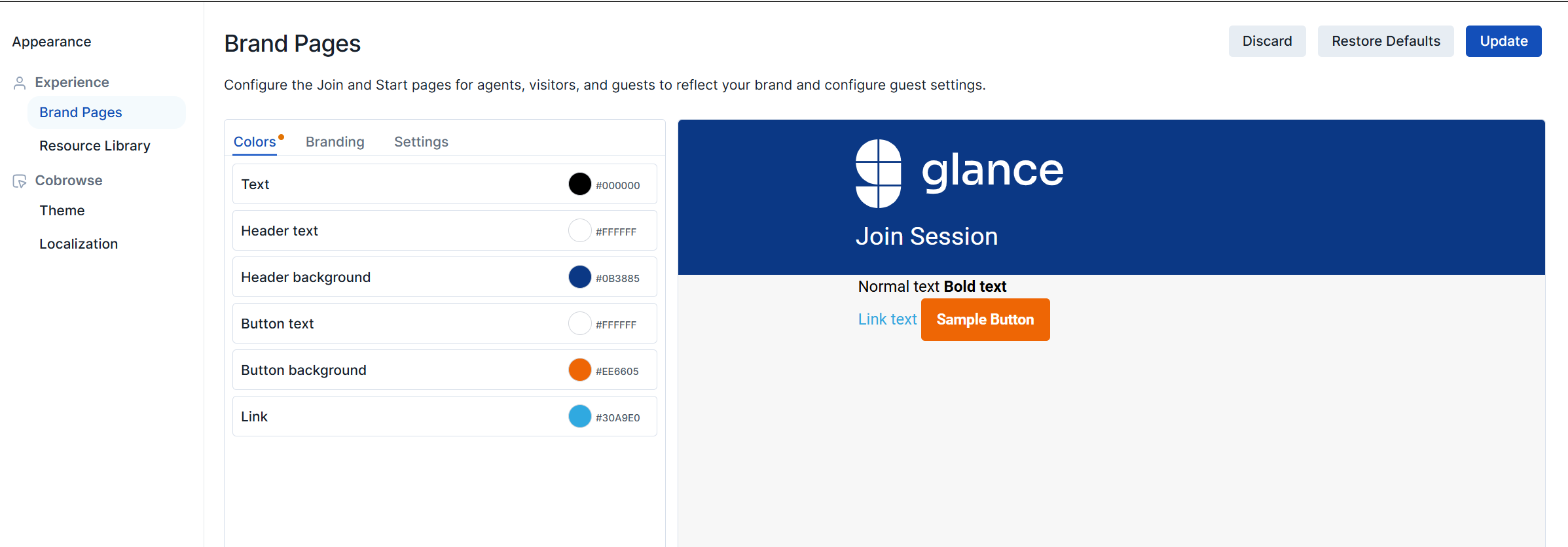
You can customize the color of the following UI elements by selecting the hex value next to the element:
- Text - Updates the text color found directly beneath the header.
- Header text - Updates the text color found within the header.
- Header background - Updates the background color of the header.
- Button text - Updates the color of the text within the button.
- Button background - Updates the background color of the button.
- Link - Updates the link color.
Branding
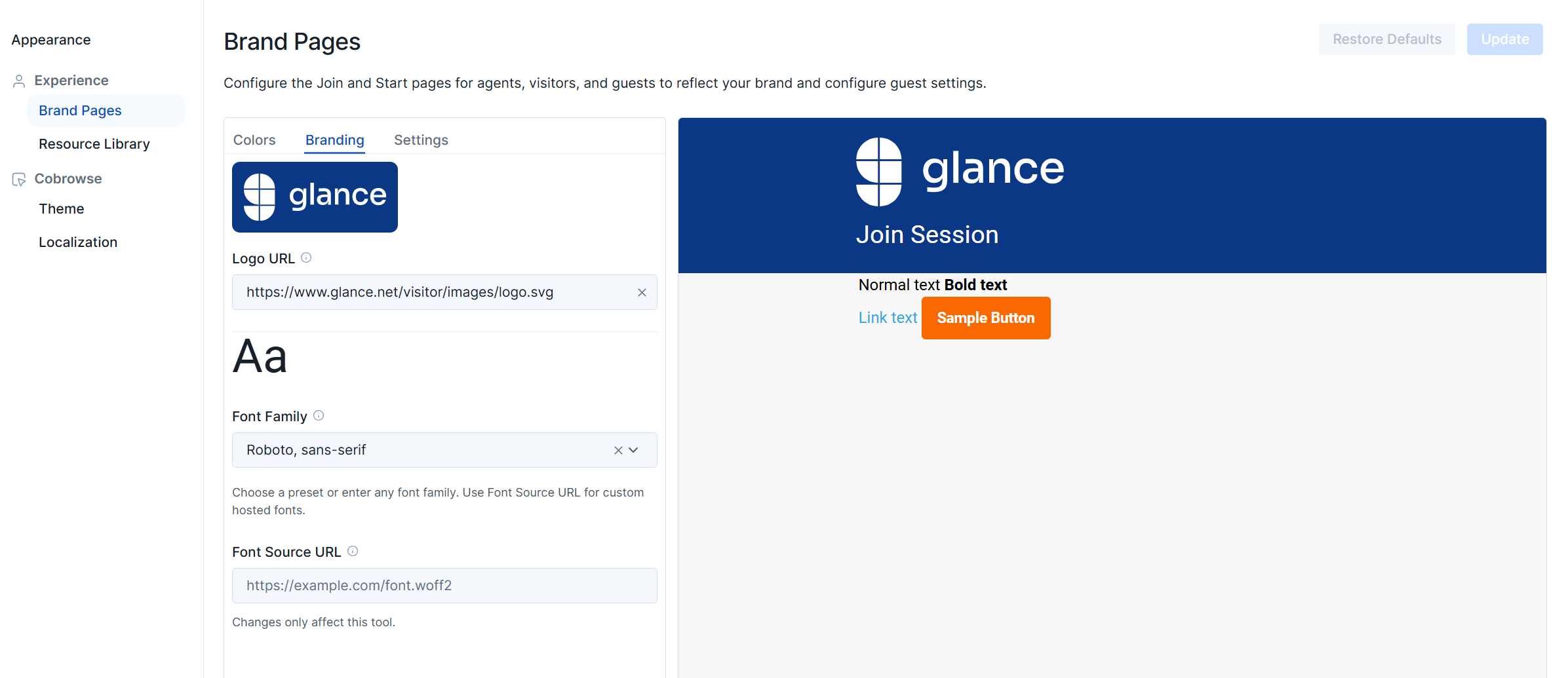
You can customize the Logo and Font used on the Branding tab.
- Logo URL - Enter an image URL to update the logo displayed in the header.
- Font Family - Select a font from the dropdown menu to update the font.
- Font Source URL - Enter a font URL to use a custom font.
Settings
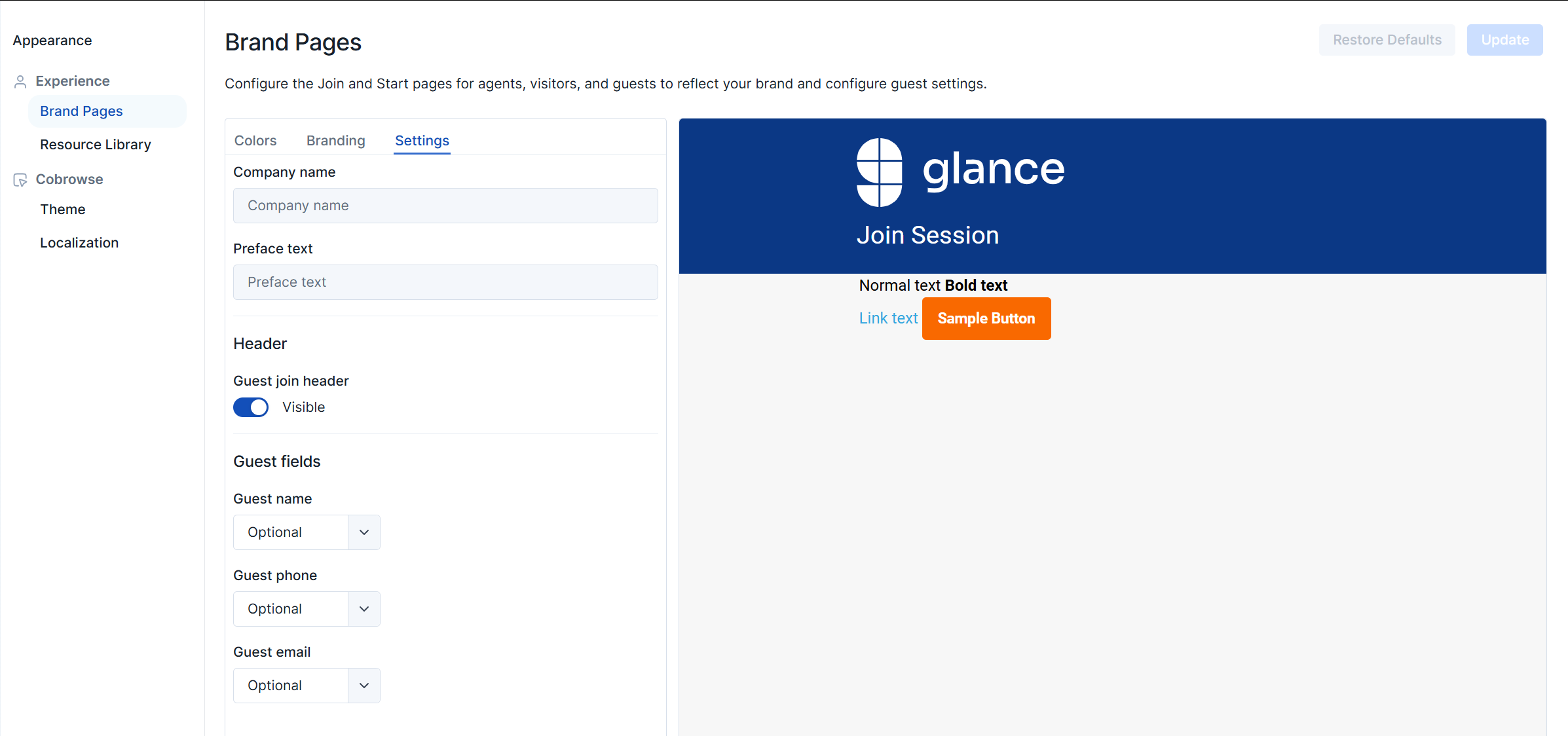
You can further customize the join page and the guest join page from the Settings tab.
- Preface text - Add an additional row of text directly beneath the header.
- Guest join header - Displays the header on the guest join page if enabled.
- Guest field - Select from the dropdown to determine what information is required when a guest joins. Options include Optional, Hidden, and Required.
- Guest name - Require the guest to enter their name when joining.
- Guest phone - Require the guest to enter their phone number when joining.
- Guest email - Require the guest to enter their email address when joining.
Resource Library
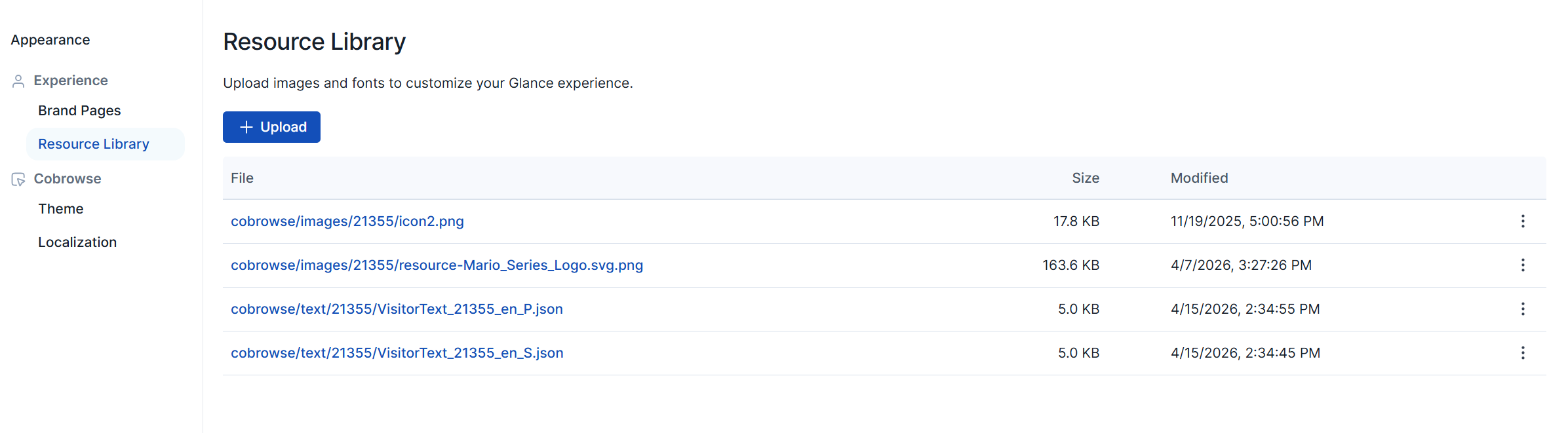
Upload and manage image and font files in the Resource Library. Once uploaded, they can be referenced throughout the Appearance section.
Theme
The Theme page is found within the Cobrowse section and allows administrators to customize the widgets that are displayed during a Cobrowse session.
Colors
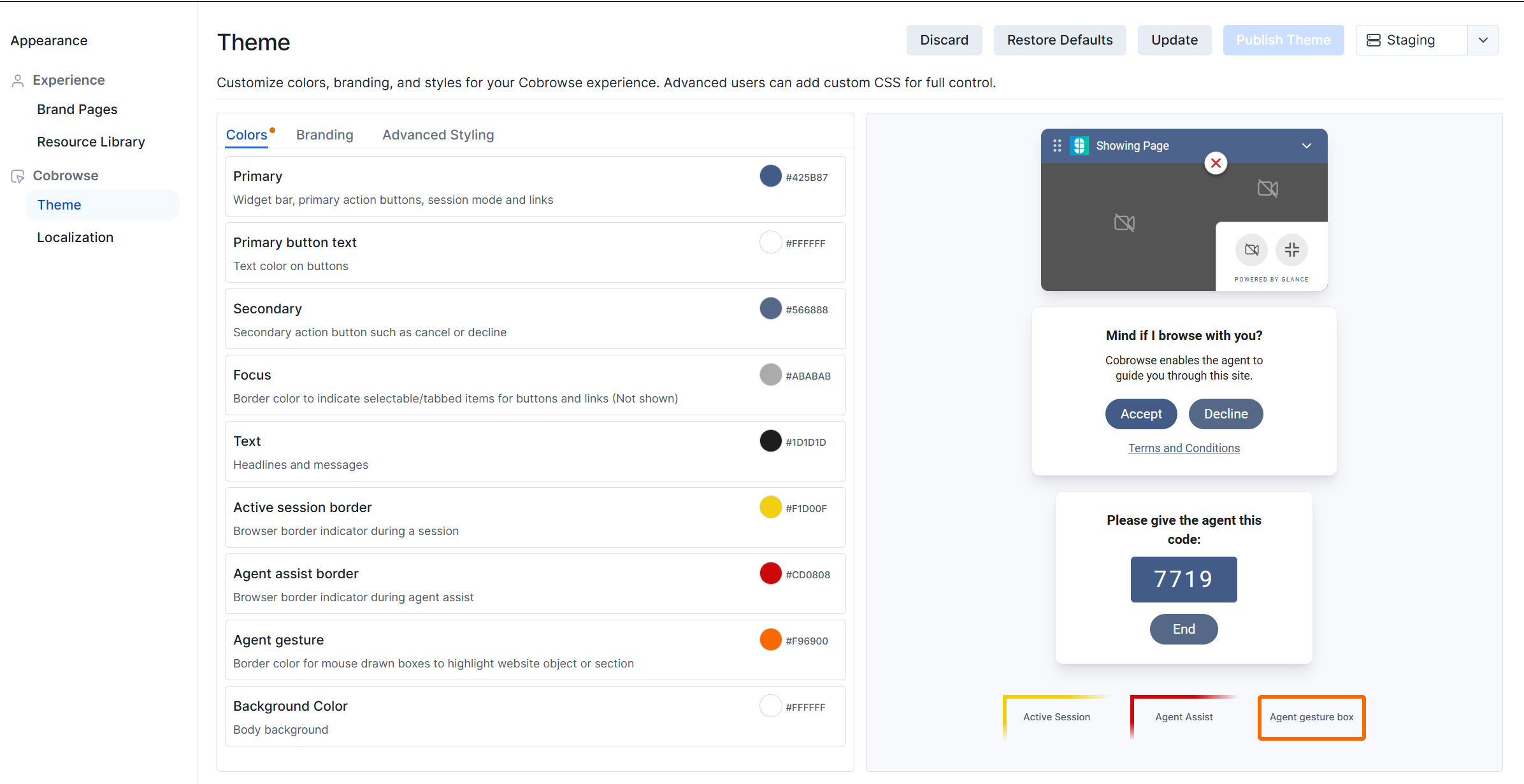
Choose the colors for the widget bar, buttons, borders, backgrounds, and gesturing. You can customize the color of the following UI elements by selecting the hex value next to the element:
- Primary - The primary background color used in the widget bar, action buttons, session mode, and links.
- Brand Color - The color used on buttons, the session code, and headers.
- Secondary - The background color for secondary buttons such as decline, cancel, or end.
- Focus - The border color used to indicate selectable or tabbed items for buttons and links.
- Text - The primary text color used within widgets.
- Active session border - The border color of a browser being shared during a session.
- Agent assist border - The border color of a browser being shared while agent assist is active.
- Agent gesture - The border color of the boxes drawn by an agent during gesturing.
- Background color - The background color of the widgets.
Branding
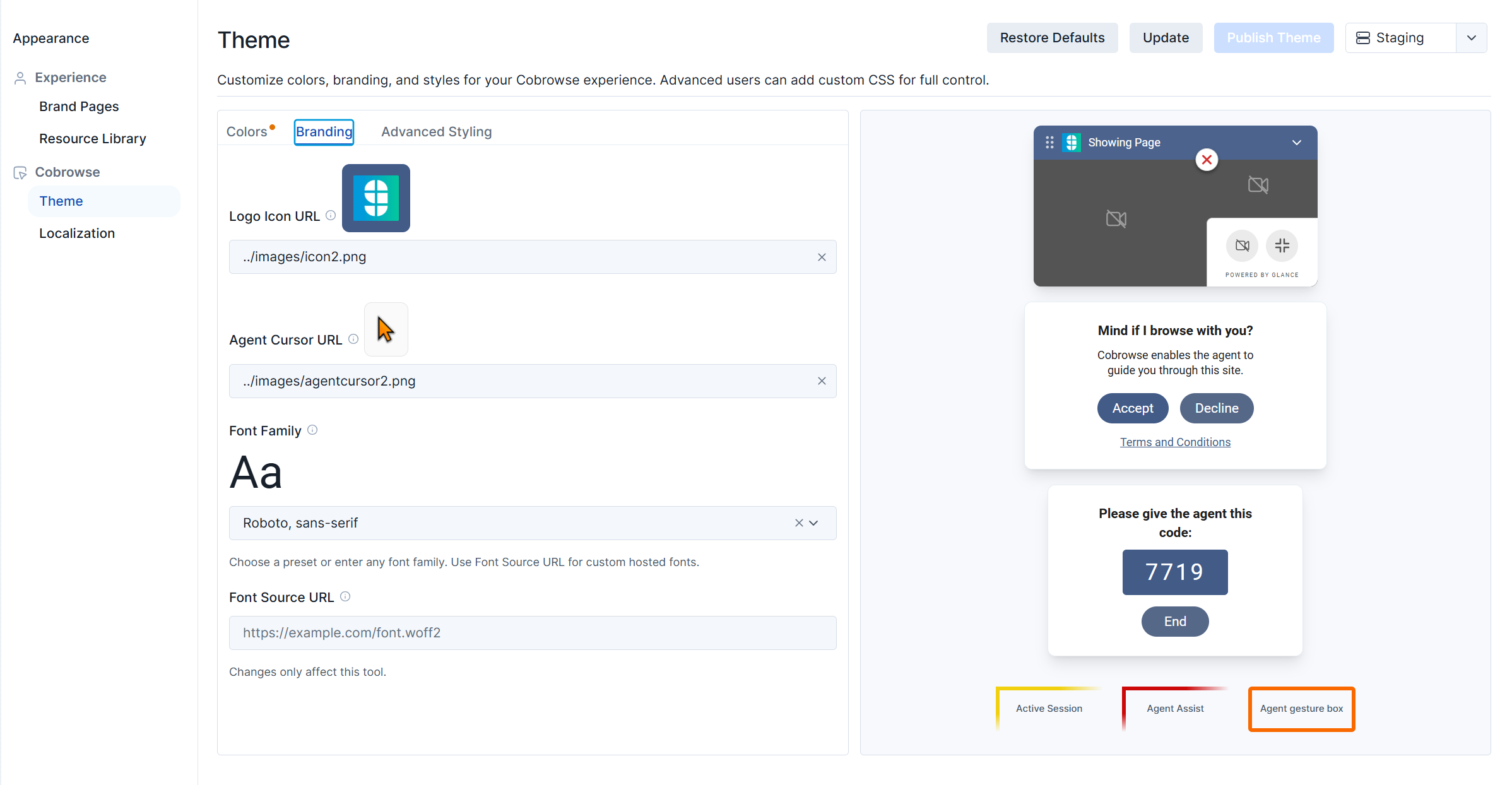
The Branding section allows you to customize the logo and font displayed on the modals. You can also customize the cursor display for the agent.
- Logo icon - Enter the URL where the logo icon is stored. The image must be in SVG or PNG format. This logo will be displayed on the Showing Page widget.
- Agent Cursor - Enter a URL where the cursor icon is stored. The image must be in SVG or PNG format.
- Font Family - Select a font from the dropdown menu to update the font.
- Font Source URL - Enter a font URL to use a custom font.
Advanced Styling
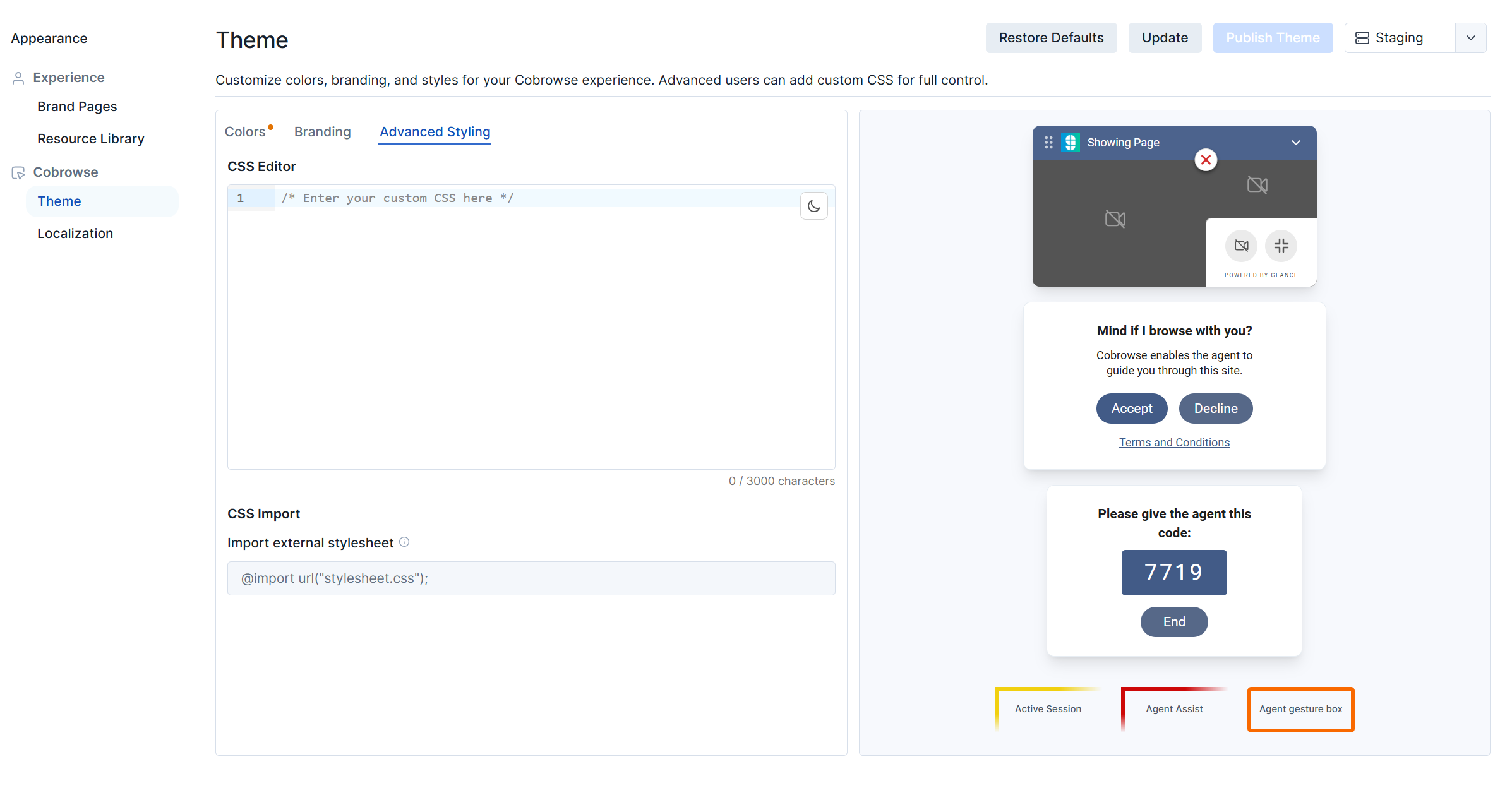
The Advanced Styling section allows you to modify widget styles and positions. CSS files can be imported using the CSS Imports section, or CSS can be modified directly using the CSS Editor section.
Localization
The Localization page is found within the Cobrowse section and allows administrators to designate the languages and text used during a Cobrowse session.
Languages
The Languages section allows you to customize which languages are enabled within the widget. You are also able to make bulk updates to the text used within the modals by updating JSON files. The following languages are supported by Glance:
- English
- French
- French Canadian
- German
- Italian
- Japanese
- Portuguese Brazilian
- Spanish
- Spanish Mexican
- Spanish US
Enabled Language
Select the Enabled option next to each language that you wish to support.
Default Language
Click the Default option next to a language to set it as the default language.
Language Hierarchy
When the Cobrowse session first starts, Glance will check the lang attribute on the <html> tag of the page.
- If the
langattribute is set to one of the enabled languages, that language will be used. - If there is no
langattribute, or thelangattribute specifies a language not enabled for Cobrowse, Glance checks the language setting in the visitor’s browser. If the browser is set to a language enabled for Cobrowse, that language will be used. - If neither the language specified by the
langattribute nor the visitor’s browser is an exact match of any of the languages enabled for the group, the Cobrowse widget will display in an enabled language (if there are any) that shares the same main language code. It bases this first on the HTML language attribute, then the browser language setting. For example, if the visitor’s browser is set for Spanish (es) but the group has only enabled Mexican Spanish (es-mx), the widget will display using the strings set for Mexican Spanish, and vice versa. - If none of the above are applicable, the customer’s default language will be used.
Download a Language File
A language file can be downloaded in order to make bulk updates to the text within the modals. Complete the following steps to download, edit, and re-upload a language file:
- Click the ellipsis (…) next to the desired language and choose Download File.
- The file will download through your browser.
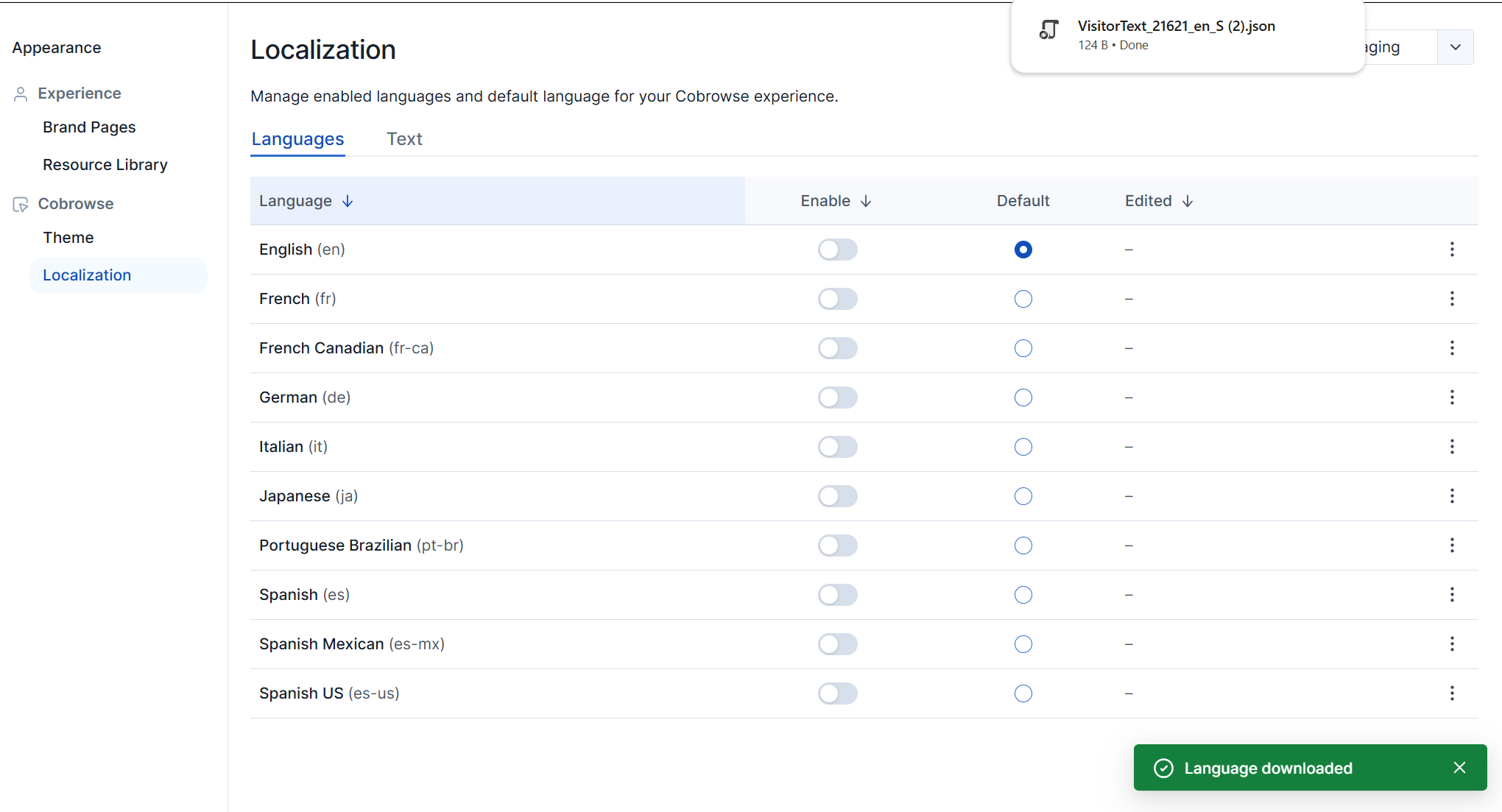
- Save the file to your local drive and open it using a text editor.
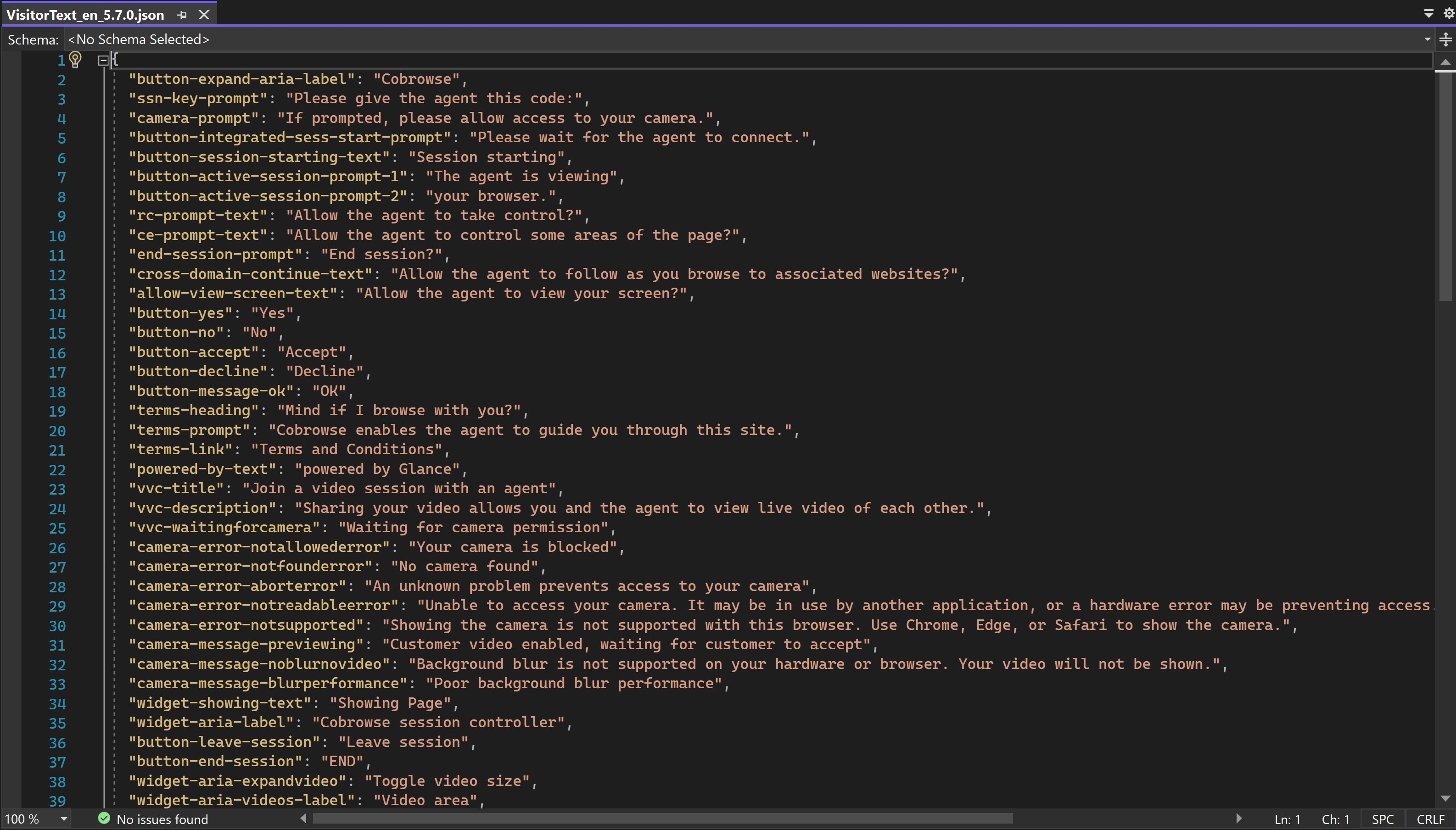
- Make the desired changes to the JSON file.
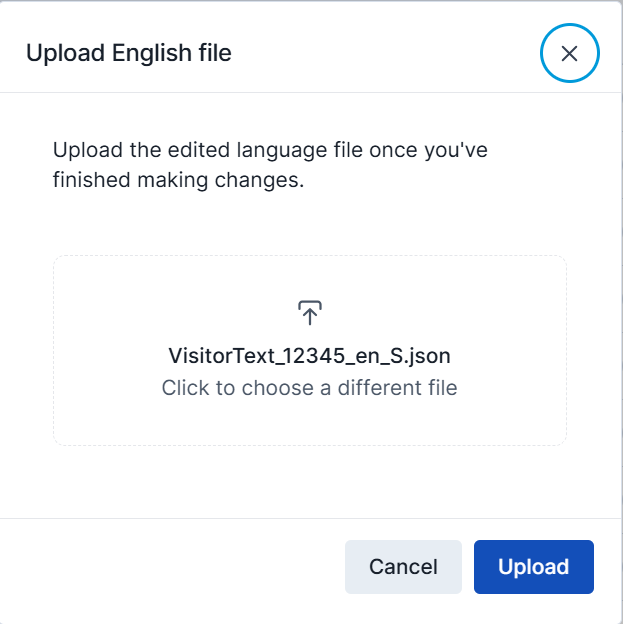
- Save the file as VisitorText_[groupid]_language_S.json (i.e., English Language =
VisitorText_12345_en_S.json) when your changes are complete.
The group ID must be changed to your actual ID when saving the file.
- Click the ellipsis (…) next to the language and choose Upload edited file.
- Drag your updated file into the modal and click the Upload button.
Text
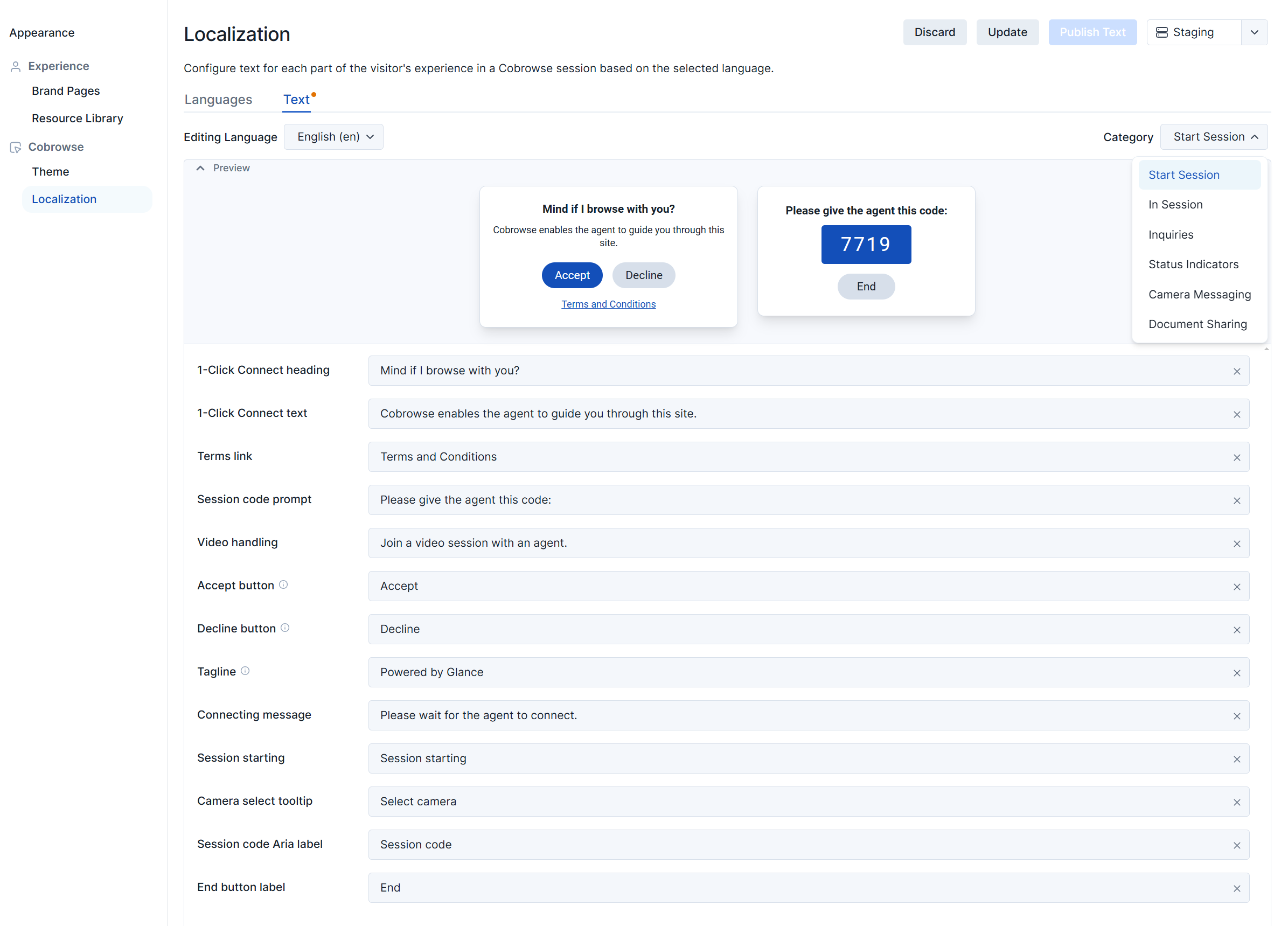
The Text section allows you to modify individual segments of text within the modals.
Editing Language
The Editing Language dropdown allows you to select the language to modify. The languages available in the dropdown are based on the languages enabled within the Languages tab.
Category
The Category buttons allow you to select which part of the session you would like to modify. Click on a category, and the correlating text options will display below. Sessions are broken down into the following categories:
- Start Session
- In Session
- Inquiries
- Status Indicators
- Camera Messaging
- Document Sharing