Video Setup
As an administrator, you can configure background effects for agents and visitors during Cobrowse and Mobile SDK video sessions.
Effects
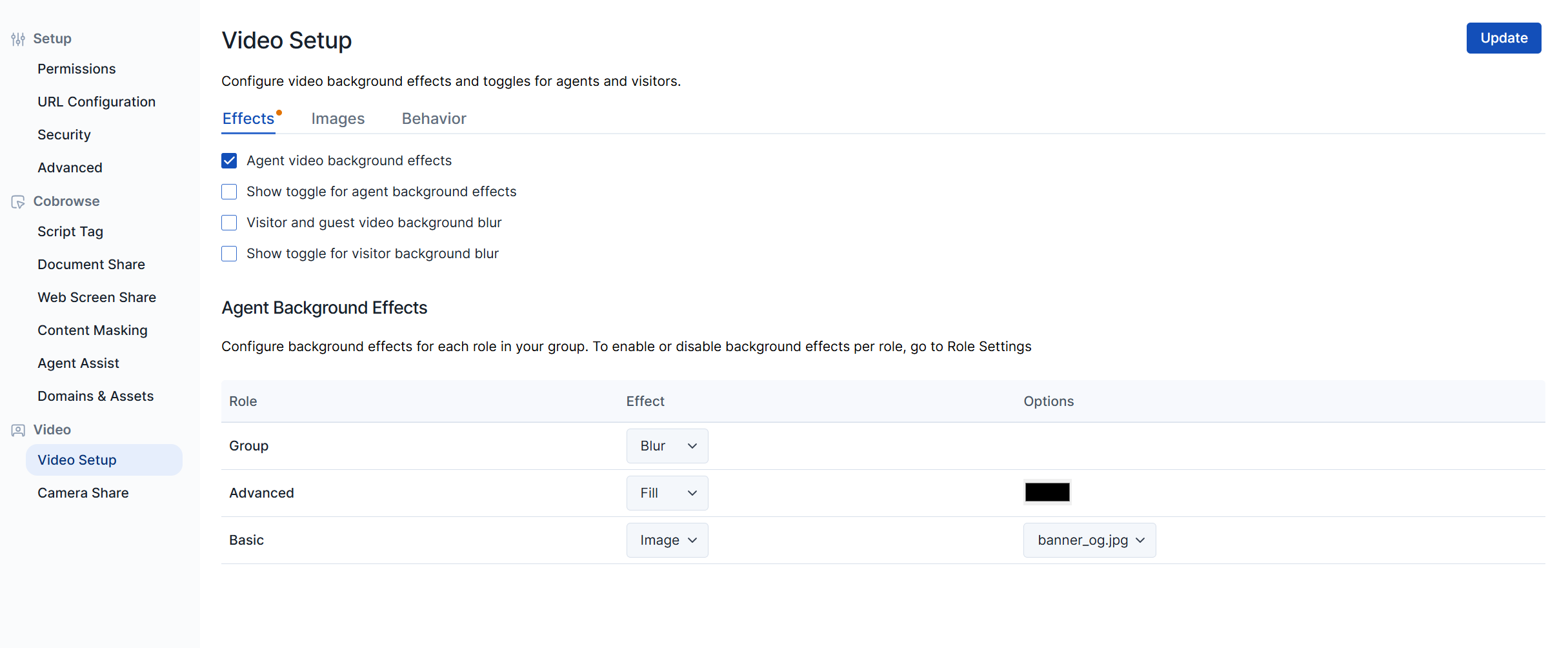
Administrators can configure which background options are available for the agent and guest within the Effects section:
- Agent video background effects: Allows the agent to add background effects.
- Show toggle for agent background effects: Displays a button for the agent to toggle background effects on or off.
- Visitor and guest video background blur: Allows visitors and guests to add background blur.
- Show toggle for visitor background blur: Displays a button for the visitor to toggle background blur on or off.
Agent Background Effects
Under Agent Background Effect, choose the default agent video background experience. Note that Role indicates which role you are updating the background for.
| Effect | Description | Options |
|---|---|---|
| Blur | Blurs the agent’s background. | None |
| Fill | Choose a color to display behind the agent. | Select the color you want to use. |
| Image | Choose an image to display behind the agent. | Select a background that has been uploaded to the Images tab. |
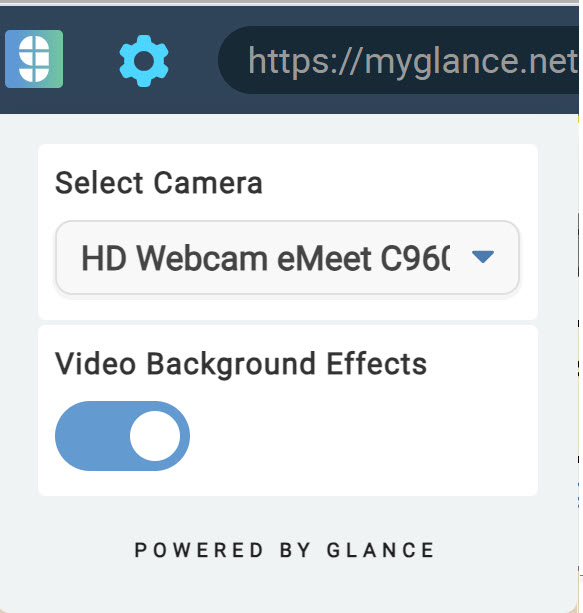
During the session, if the toggle button is enabled, agents can turn their background effects on or off from the Gear icon > Video Background Effects.
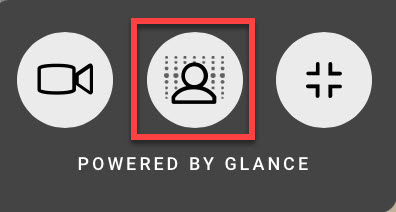
Visitors and guests can toggle their blur off from the blur icon while Cobrowsing on a mobile device or computer.
Best Practices for Agent Background Selection
- In general, light replacement backgrounds work better because the algorithm attempts to ‘feather’ the edging, which will always look more distinct if there is a big disparity between the colors.
- A detailed background (like a picture of an office or branch) may work better than a solid color.
- Make sure the agent has proper lighting and is centered in view, as the background detection algorithm is trained for the human to be in the center.
- Whenever possible, minimize wide variations in color in the agent’s physical background (e.g., columns that are white versus black).
Images
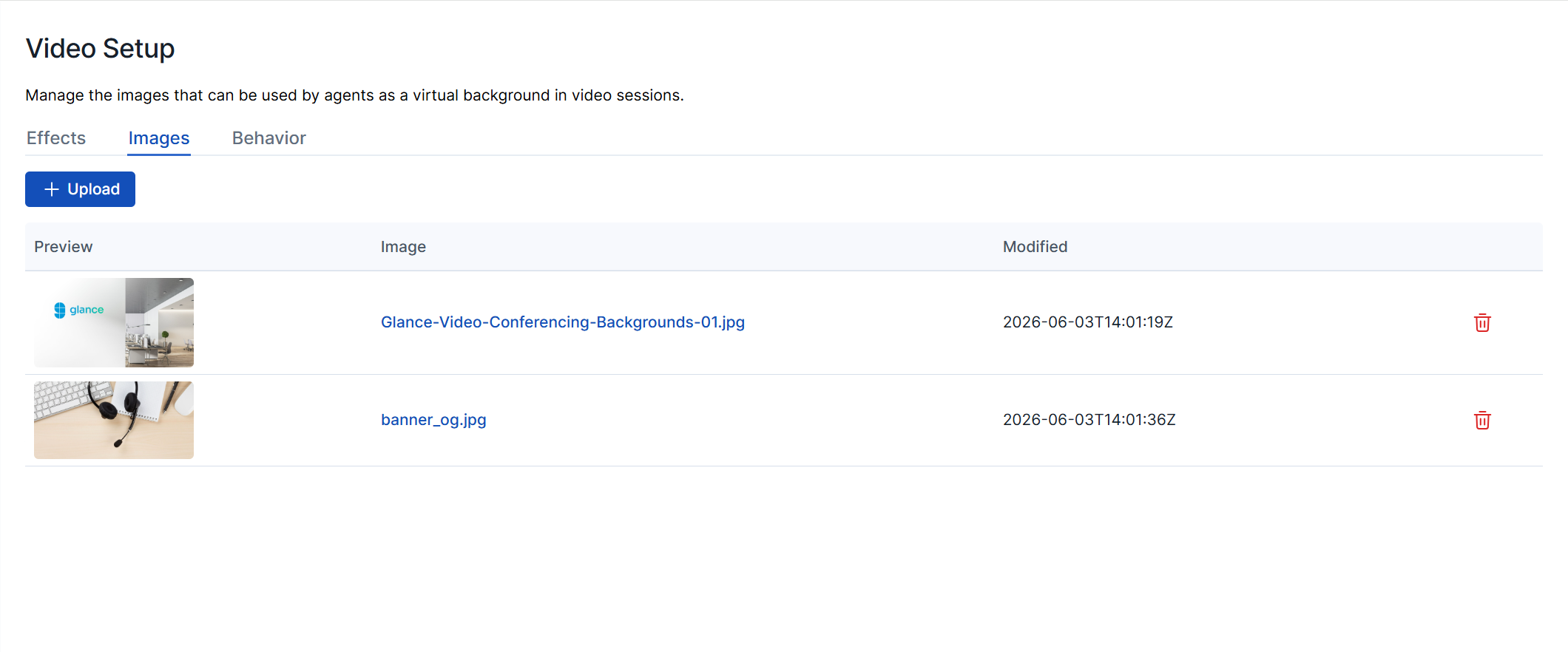
Click the Upload button to upload a file to use for the background replacement.
- Glance recommends using an image that is 1280 x 720 pixels.
- Minimum Supported File Size: 640 x 360
- Maximum Supported File Size: 1280 x 720
- Supported File Types: JPEG, PNG
- There is a total file size limit of 1 MB.
If your background features a logo or text, ensure the image is 1280 x 720 pixels, with the logo/text positioned 160 pixels from the side borders and 50 pixels from the top border.
Behavior
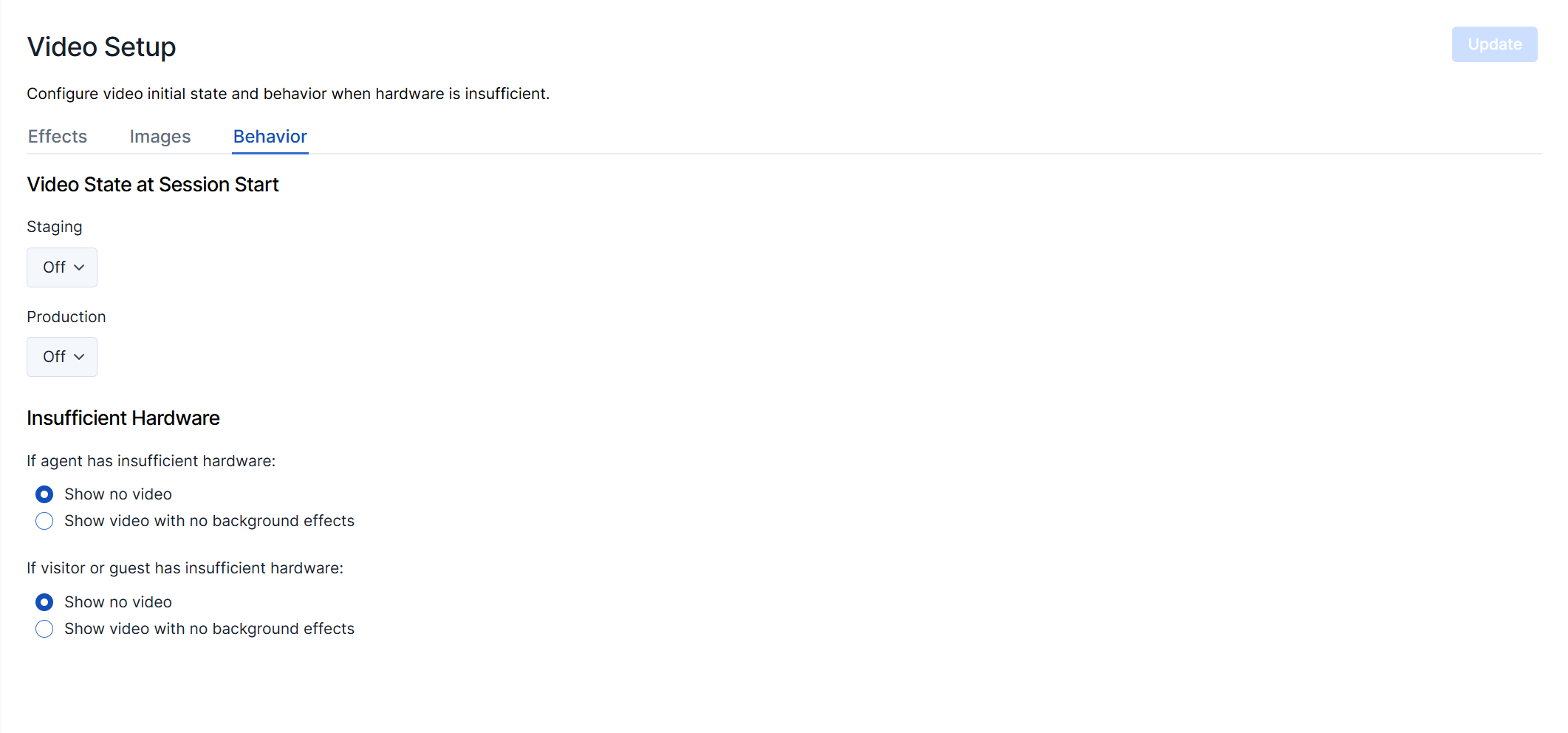
Video State at Session Start: Choose between Off, Small, or Large for the video size to begin your session within the Staging and Production environment.
Insufficient Hardware: Choose the fallback experience you want if there is insufficient hardware for agents or visitors/guests to use background effects:
- Show no video
- Show video with no background effect