SSO Autoprovisioning
Customers who subscribe to Glance products offering autoprovisioning can skip the step of pre-provisioning each of their users who must use Glance. Instead, a Glance subscriber account is created on the fly the first time each user accesses the Glance product via SAML single signon.
Requirements
You must contact your Glance representative in order to activate autoprovisioning on your account.
Autoprovisioning only works for SAML-integrated customer accounts. Set up SAML access to Glance, and verify it is working correctly for Glance subscribers. When valid SAML Assertion documents are being presented to the Glance service, the autoprovisioning user interface uses them to help choose the appropriate attributes to use for new Glance subscribers.
Autoprovisioning requires certain identifying attributes to be provided by the customer’s SAML single-signon identity provider. To autoprovision an account, Glance needs:
- An agreed-upon unique identifier for each new subscriber.
- A way to create a Glance Address from the user’s profile information.
- Name, email, and telephone number attributes are helpful but not required.
Configuring Autoprovisioning
When Glance is integrated with your SAML enterprise single-signon solution, you can automatically create/provision a new Glance account for each new subscriber from your organization. This panel provides the information required to provision these accounts correctly.
Glance identifies your subscribers with these attributes (items of data):
- GlanceAddress (required)
- PartnerUID
- FirstName
- LastName
- Phone
- Role
Most subscribers need a valid and unique PartnerUID. This can be an employee number or any other unique alphanumeric code assigned by your organization and can be the same value as the GlanceAddress.
The other information (name, email, and phone number) is not required. It helps support and keep track of subscribers.
Your SAML enterprise single-signon solution is configured to present particular attributes of each user to Glance.
-
Select the Yes on the Autoprovision new users dropdown.
-
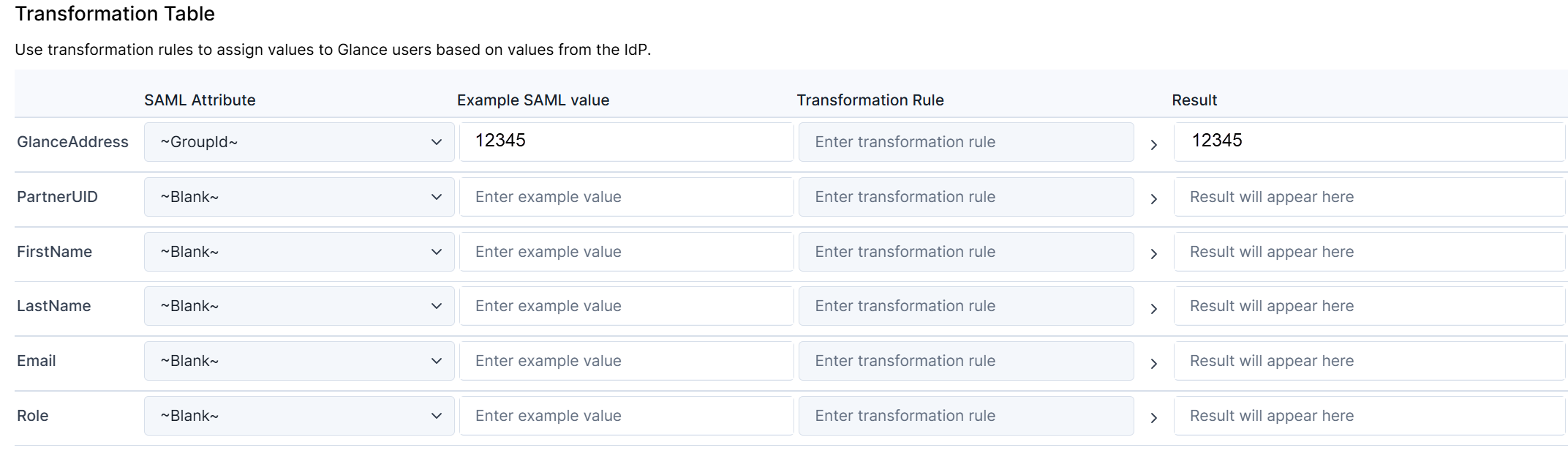
Choose which SAML attributes to use for new Glance subscribers on the Transformation Table.
-
Select the SAML Attribute to use to create the Glance Address. The example values shown next to each attribute name should help you make the choice. In this case, the GroupID attribute is used.
-
Select a Transformation Rule from the Transformation Guide and enter it in the Transformation Rule cell. In this example {RandomDigits(d+)} is used, it adds a specified number of random digits to the end of the group id.
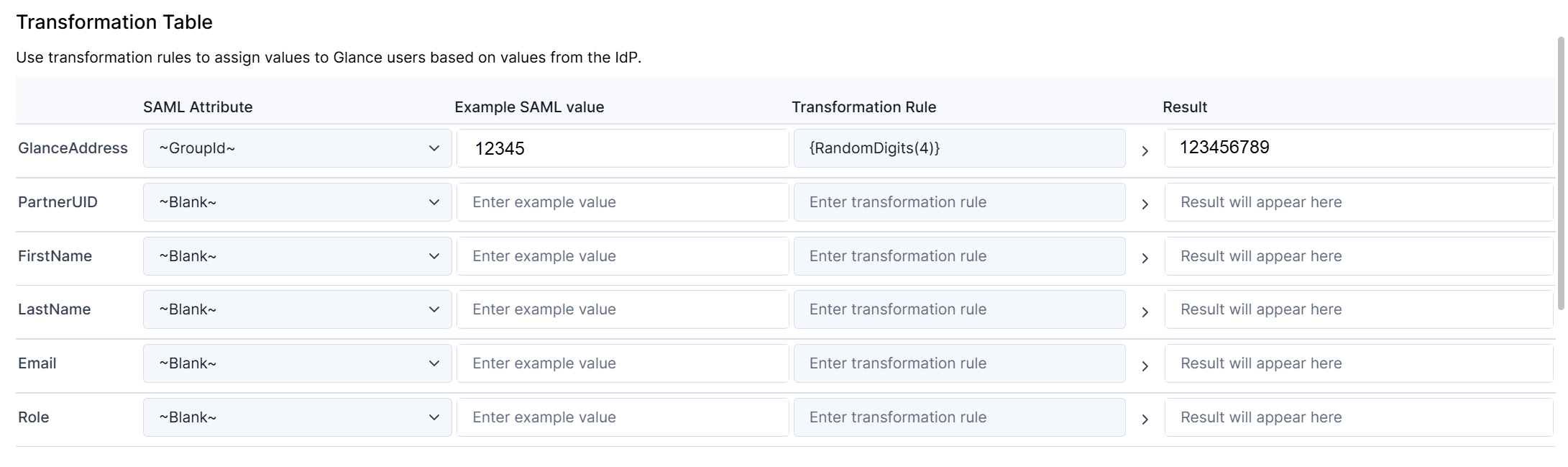
Specifying no transformation rule leaves the attribute unchanged.
You may specify SAML Attributes and Transformation Rules for all six items in this panel. You must specify them for the Glance Address, and it’s helpful to specify them for partnerUID.
-
Configure either Glance Address, PartnerUID, or Email to use an attribute that appears unchanged as one of the attributes in the SAML assertions. The attribute must uniquely identify the subscriber.
-
Navigate back to the main Configure tab, set the **User Identity Attribute Name **to that same attribute.
-
Select a role in the Role Assignment section if you would like to assign the new users a default role.
Finishing Provisioning
Once the SAML provisioning is complete for the account, wait a few days for the changes to process.
- When production is known to be stable, navigate back to the Configure tab.
- Set the Operational Status to Production.
Sign-on and autoprovisioning events take slightly less time when the status is Production.
- Click the OK button when changes are complete.