Quickstart
1. Install the SDK
The Mobile SDK for iOS is available for installation via Cocoapods or Manual integration.
2. Initialize the SDK
On application startup, initialize the SDK with the following lines:
We recommend to call the init method as soon as your app starts, you can do this in your AppDelegate initialization. For example:
3. Start sharing your screen
To start sharing your screen, call the startSession() method like this:
After that, click on Accept:
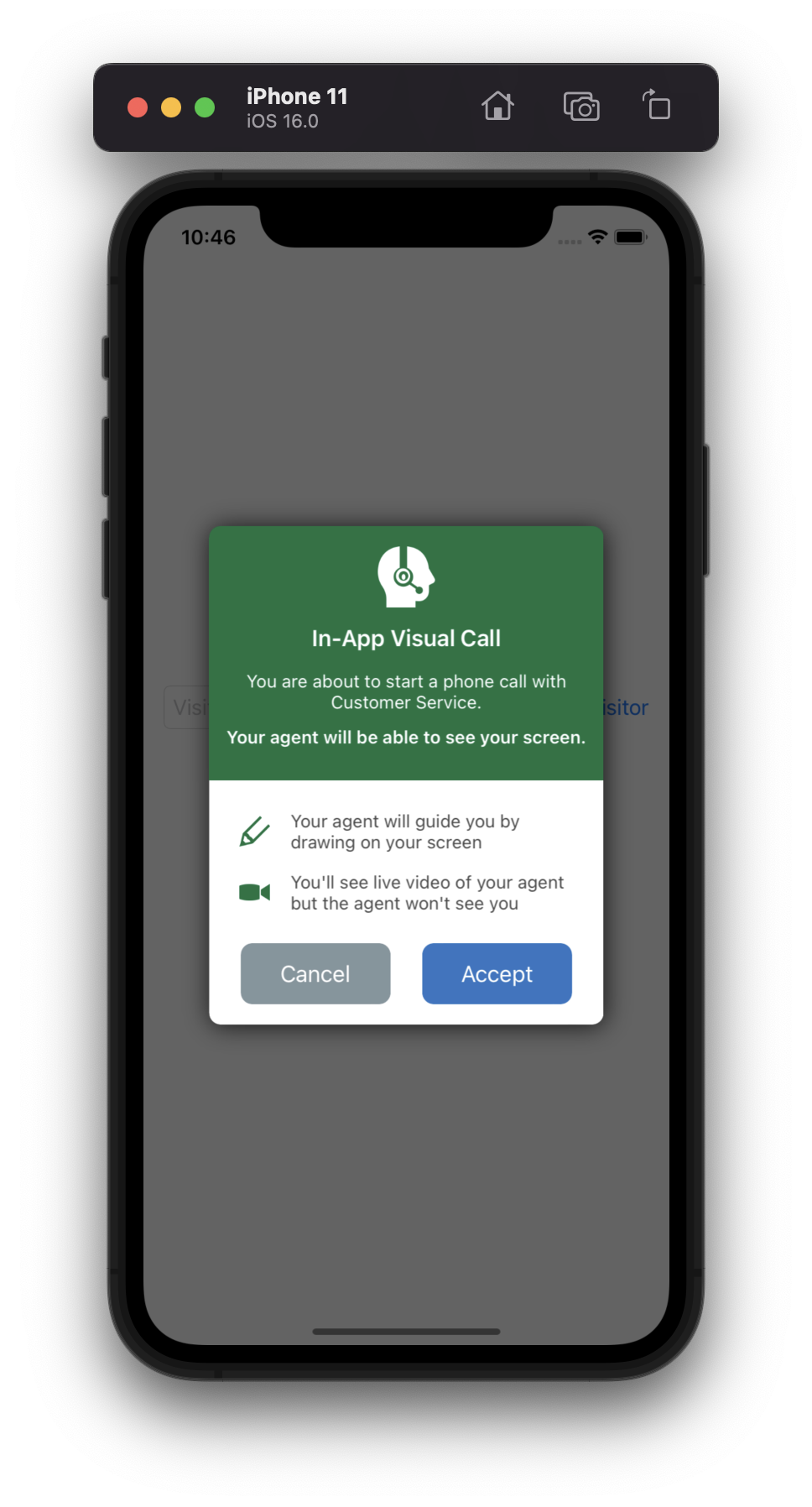
Then you’ll see a code like the screen below:
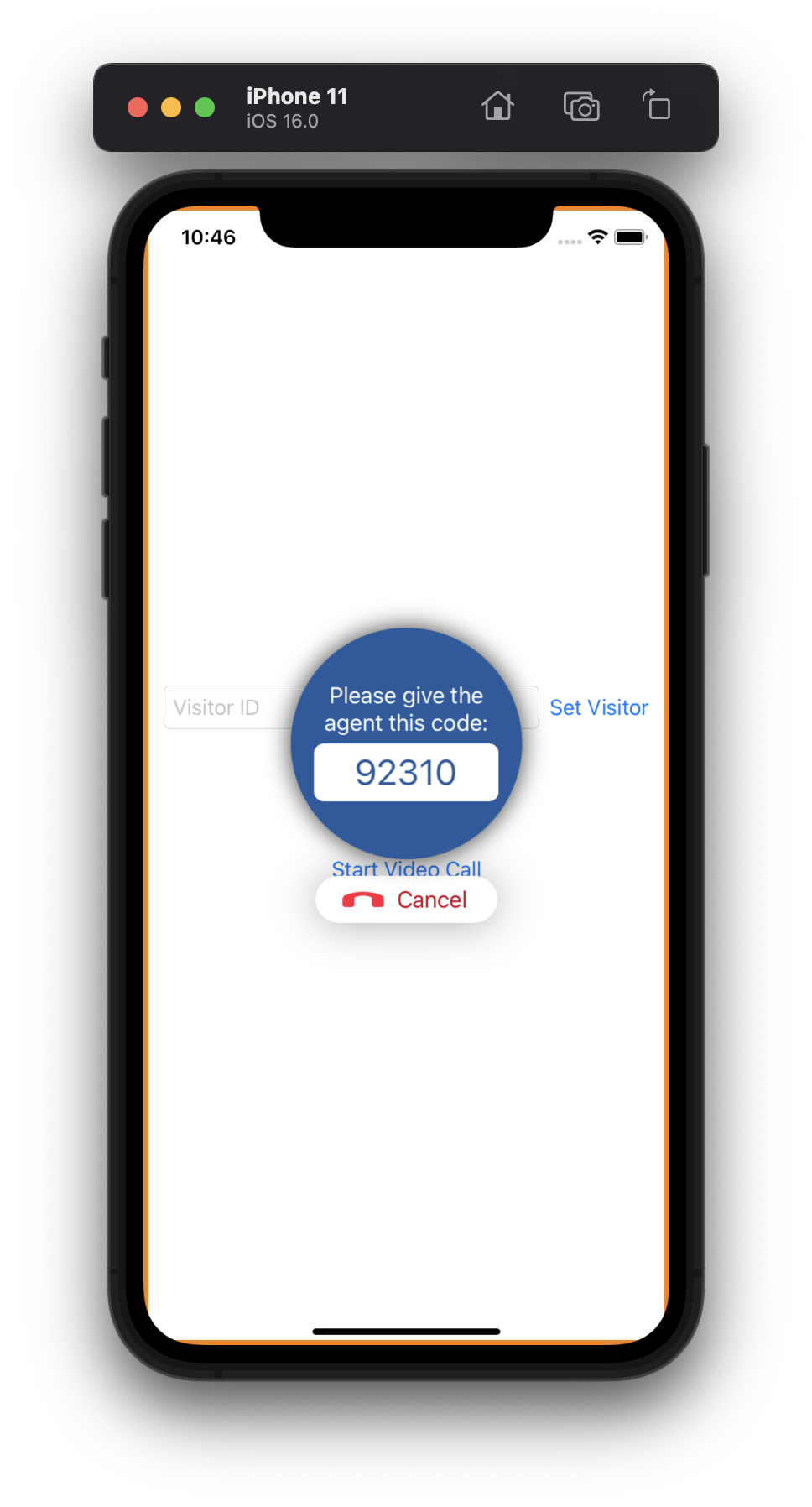
Copy the code from the screen and send to your Agent, once they accept the call, you will be sharing your screen.
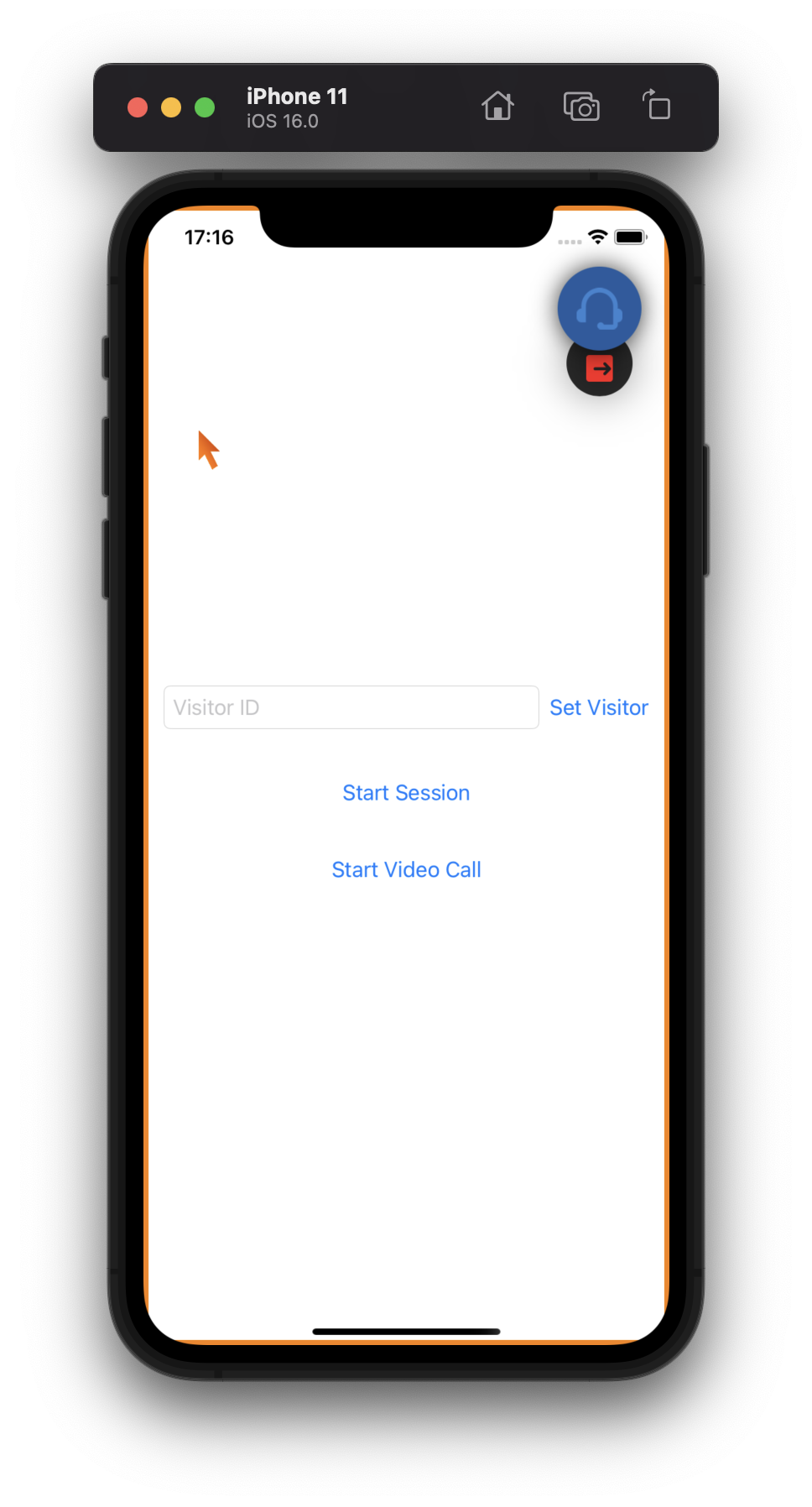
You can also define a Session Code when calling startSession()
If you define it, now you should pass that Session Code to the agent and wait until they connect.
4. Testing the Agent
To confirm the integration is working, start the session and note the session key.
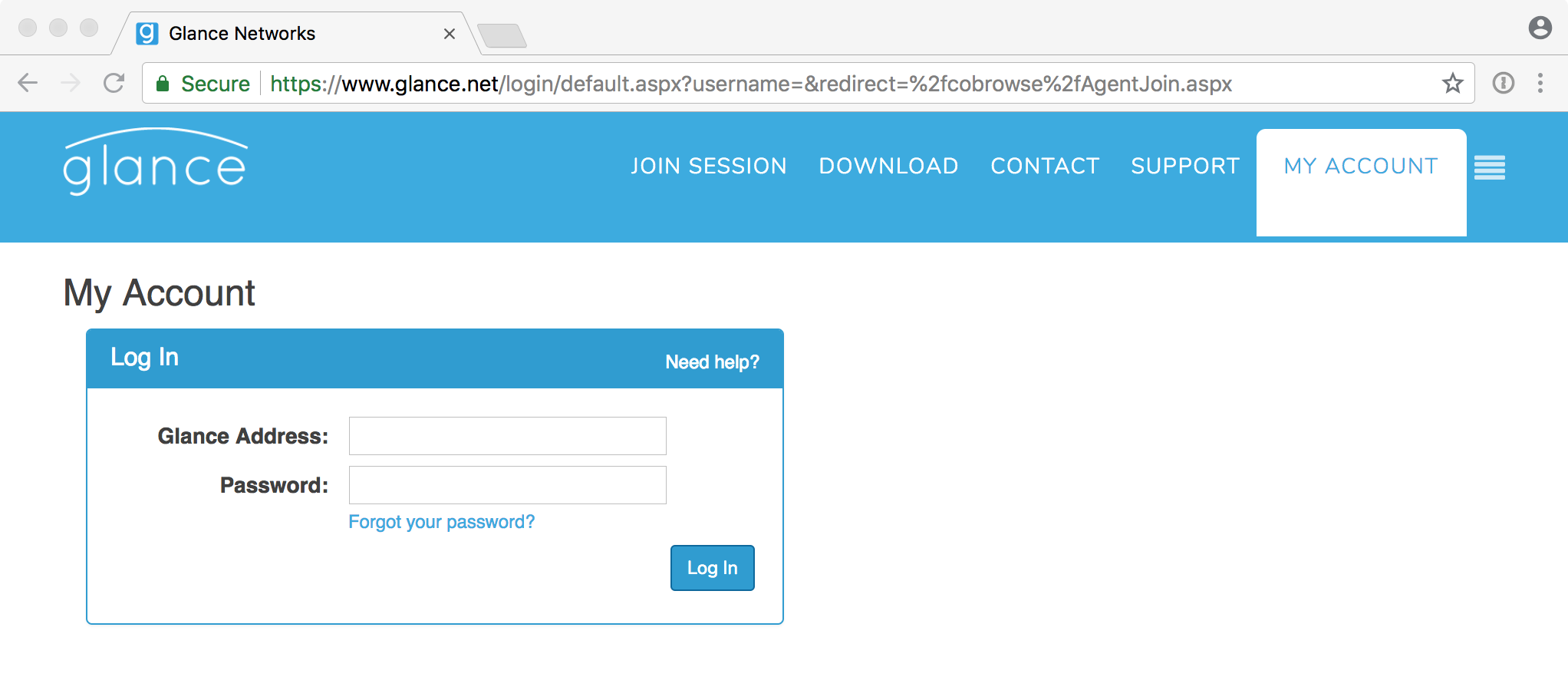
Now, to simulate the Agent, go to: https://www.glance.net/agentjoin/AgentJoin.aspx.
If not logged in already, the agent will be asked to login, ask Glance for your credentials if you still don’t have them:
Now, enter the Session Code and tap Join Session:
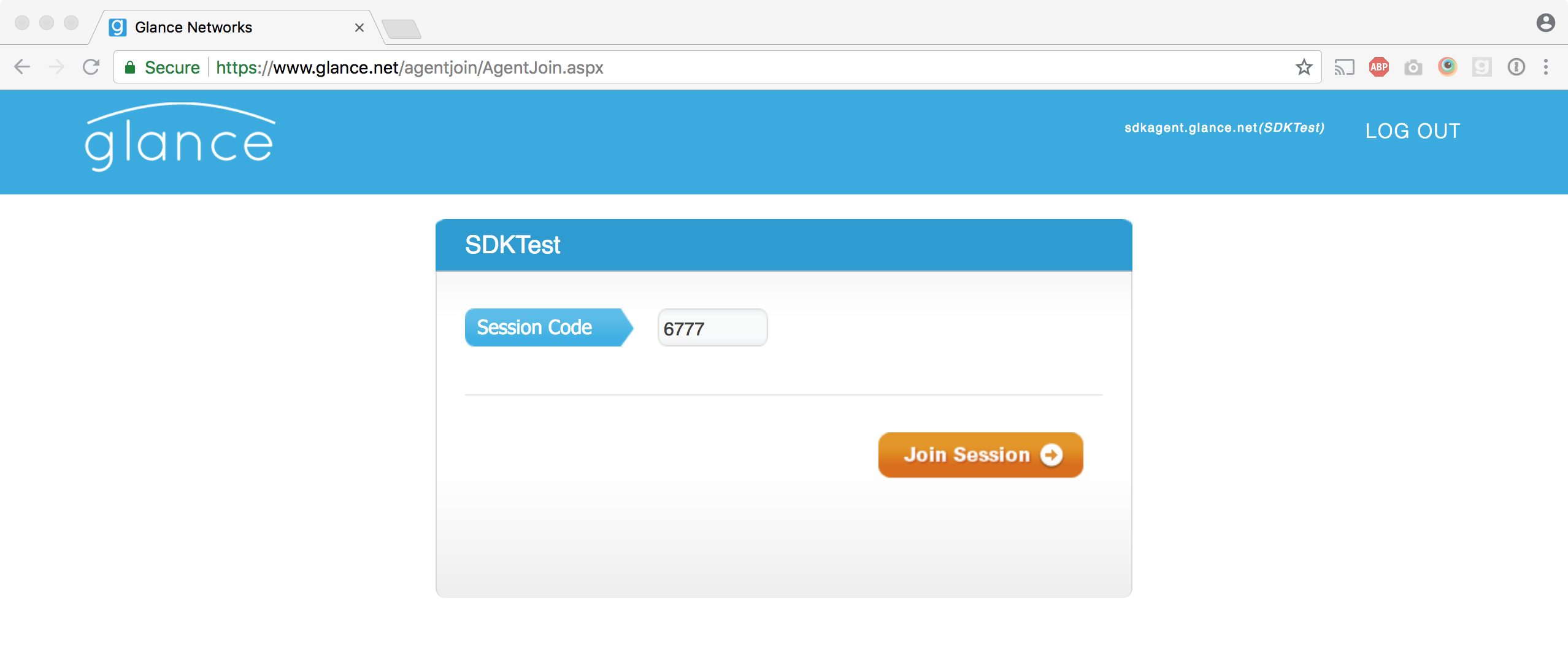
After that, you’ll be able to see your mobile device screen.
5. Receiving events
To receive events from the SDK, you need to implement the protocol GlanceVisitorDelegate like below:
All events must be treated on the Main Thread, so we need to use DispatchQueue.main.async.
Finally, we need to add our new delegate to the SDK, otherwise our delegate will not receive any events:
6. Masking
Views with personal private information or banking information should be hidden from the agent. You can mask a view like this:
You can remove a mask with another call: